RichLabel.Maui 🚀
A powerful, flexible, and lightweight .NET MAUI control for rendering rich text from a simple JSON structure. It provides seamless, extensible support for interactive tap gestures, making it easy to handle links, phone numbers, emails, or trigger custom actions within your app.


Preview
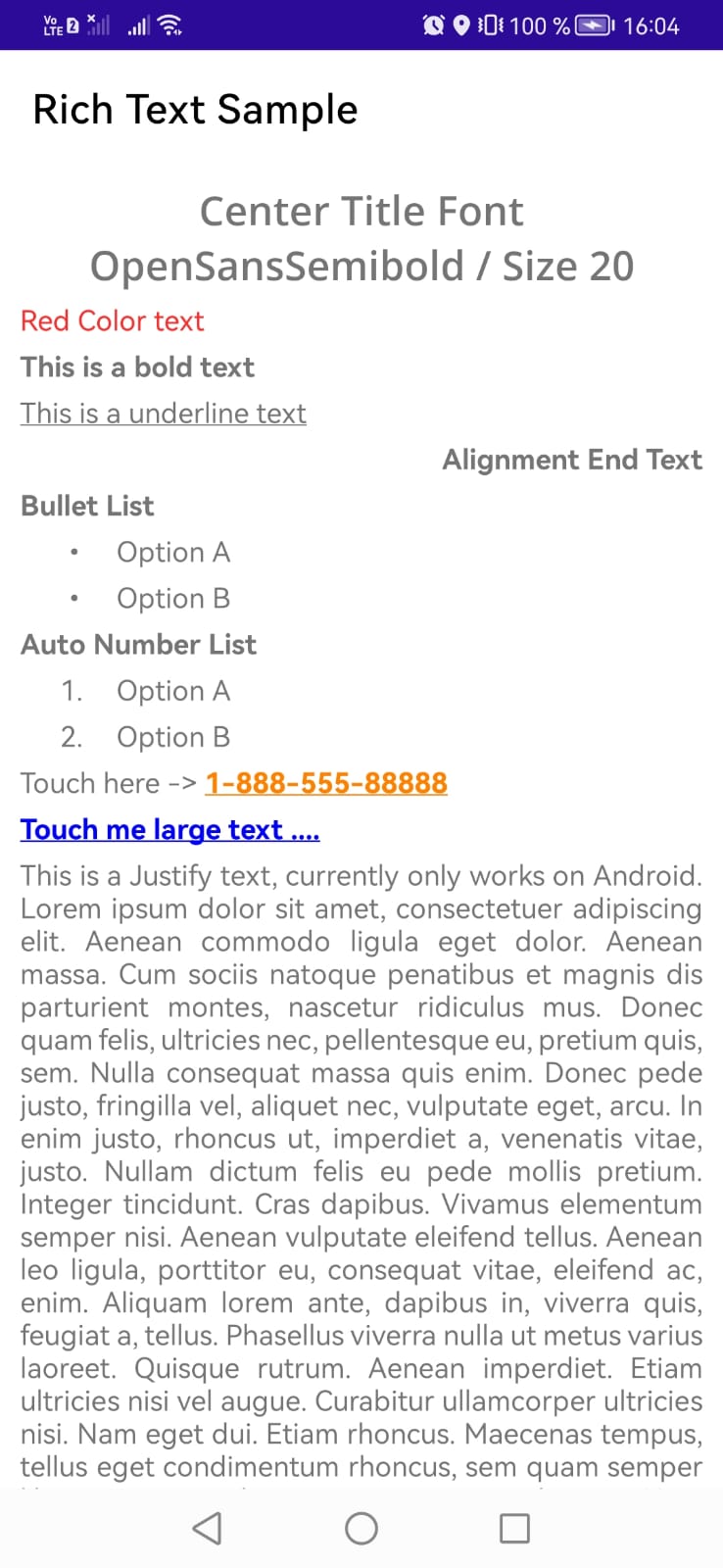
Features ✨
- JSON-Driven Text — Render complex, formatted labels using a clean, well-structured JSON schema.
- Rich Styling — Native support for custom font families, sizes, bold, italic, underline, text colors, and background colors per text segment.
- Advanced Layouts — Render standard paragraphs, custom bulleted lists, and auto-numbered sequences.
- Extensible Tap Gestures — Pass custom action types and data payloads through JSON to trigger native actions (phone calls, custom alerts, view navigation, etc.).
- Cross-Platform Alignment — Supports Start, Center, End, and Justified text alignment.
- Safe Formatting & Scaling — Built-in validation prevents crashes from invalid formatting input, with automatic font scaling for tablets.
Installation 📦
Add the NuGet package to your .NET MAUI project:
dotnet add package RichLabel.Maui
Quick Start 🚀
1. Define your JSON data
Your backend or local storage can provide a JSON structure describing each line and text segment:
{
  "lines": [
    {
      "type": "Normal",
      "alignment": "Center",
      "spans": [
        {
          "fontFamily": "OpenSansSemibold",
          "fontSize": 20,
          "text": "Center title, font OpenSansSemibold, size 20"
        }
      ]
    },
    {
      "type": "Normal",
      "spans": [
        {
          "color": "#ff2c2c",
          "text": "Red colored text"
        }
      ]
    },
    {
      "type": "Normal",
      "spans": [
        {
          "bold": true,
          "text": "This is bold text"
        }
      ]
    },
    {
      "type": "Normal",
      "spans": [
        {
          "underline": true,
          "text": "This is underlined text"
        }
      ]
    },
    {
      "type": "Normal",
      "alignment": "End",
      "spans": [
        {
          "bold": true,
          "text": "End-aligned text"
        }
      ]
    },
    {
      "type": "Normal",
      "spans": [
        {
          "bold": true,
          "text": "Bullet list"
        }
      ]
    },
    {
      "type": "Bullet",
      "bulletChar": "•",
      "indentLevel": 1,
      "spans": [
        { "text": "Option A" }
      ]
    },
    {
      "type": "Bullet",
      "bulletChar": "•",
      "indentLevel": 1,
      "spans": [
        { "text": "Option B" }
      ]
    },
    {
      "type": "Normal",
      "spans": [
        {
          "bold": true,
          "text": "Auto-numbered list"
        }
      ]
    },
    {
      "type": "Numbered",
      "indentLevel": 1,
      "spans": [
        { "text": "Option A" }
      ]
    },
    {
      "type": "Numbered",
      "indentLevel": 1,
      "spans": [
        { "text": "Option B" }
      ]
    },
    {
      "type": "Normal",
      "spans": [
        { "text": "Tap here -> " },
        {
          "fontFamily": "RegularFont",
          "text": "1-888-555-88888",
          "bold": true,
          "underline": true,
          "color": "#FF8100",
          "actionType": "phone",
          "actionValue": "188855588888"
        }
      ]
    },
    {
      "type": "Normal",
      "spans": [
        {
          "fontFamily": "RegularFont",
          "text": "Tap me for a message",
          "bold": true,
          "underline": true,
          "color": "#0000FF",
          "actionType": "text",
          "actionValue": "Thanks for tapping!"
        }
      ]
    },
    {
      "type": "Normal",
      "alignment": "Justify",
      "spans": [
        {
          "text": "This is justified text. Note: justified alignment is currently supported on Android only. Lorem ipsum dolor sit amet, consectetuer adipiscing elit. Aenean commodo ligula eget dolor. Aenean massa. Cum sociis natoque penatibus et magnis dis parturient montes, nascetur ridiculus mus."
        }
      ]
    }
  ]
}
2. Deserialize your JSON data
Use your preferred JSON library to deserialize the data into a RichTextDocument object:
RichTextDocument richDocument = JsonConvert.DeserializeObject<RichTextDocument>(jsonData);
3. Add the control to your XAML
Register the namespace and drop the control into your layout:
<ContentPage xmlns="http://schemas.microsoft.com/dotnet/2021/maui"
             xmlns:x="http://schemas.microsoft.com/winfx/2009/xaml"
             x:Class="Sample.RichLabel.Maui.MainPage"
             xmlns:viewModels="clr-namespace:Sample.RichLabel.Maui.ViewModels"
             xmlns:richLabel="clr-namespace:RichLabel.Maui.Control;assembly=RichLabel.Maui">

    <ScrollView>
        <Grid RowDefinitions="*" ColumnDefinitions="*">

            <!-- Set IsResponsiveFontSize="True" to enable automatic font scaling on tablets -->
            <richLabel:RichLabel
                Grid.Row="0"
                Document="{Binding RichDocument}"
                Margin="{OnIdiom Phone=10, Tablet=15, Default=15}"
                IsResponsiveFontSize="True" />

        </Grid>
    </ScrollView>

</ContentPage>
Handling Actions 🛠️
For custom app workflows, register a RichActionHandler in your App.xaml.cs:
using RichLabel.Maui.Handlers;

namespace Sample.RichLabel.Maui
{
    public partial class App : Application
    {
        public App()
        {
            InitializeComponent();
            InitActionTouchHandler();
        }

        public void InitActionTouchHandler()
        {
            RichActionHandler.Register("phone", async value =>
            {
                await Shell.Current.DisplayAlert("Phone Data", $"Parameter value: {value}", "Close");
            });

            RichActionHandler.Register("text", async value =>
            {
                await Shell.Current.DisplayAlert("Text Data", $"Parameter value: {value}", "Close");
            });
        }

        protected override Window CreateWindow(IActivationState? activationState)
        {
            return new Window(new AppShell());
        }
    }
}
Each actionType in your JSON (e.g. "phone", "text") maps to a handler registered here, letting you define exactly what happens when a user taps that segment.
Contributing 🤝
Contributions, issues, and feature requests are welcome! Feel free to check the issues page or open a pull request.
Support the Project ☕
If this component saves you development time or streamlines your dynamic text workflows, feel free to drop a star on the repository! ⭐
- NuGet URL: RichLabel.Maui Packages
- Project Support: Support on Ko-fi